GitHub Integration
FinderGit reads GitHub data — open issues, pull requests, repository metadata, stargazer counts — directly from your repositories’ configured remotes. Nothing leaves your Mac except the requests to api.github.com; no FinderGit-side proxy or telemetry sits in the middle.
The integration powers:
- The Overview, Issues, and Pull Requests tabs in the Detail Panel
- Three columns in the File Browser: Issues, PRs, and Stars
How FinderGit talks to GitHub
There are two ways to authenticate, and FinderGit picks the right one automatically per call:
- GitHub CLI (
gh) — preferred. If you already useghand have rungh auth login, FinderGit inherits that authentication and you don’t need to manage a token. - Personal Access Token (PAT) — fallback. If
ghisn’t installed or isn’t authenticated, FinderGit reads a token you’ve pasted into Settings (stored in the macOS Keychain, never on disk in FinderGit’s own files).
If neither is configured, the GitHub-driven tabs and columns degrade gracefully: a short hint replaces the empty list, and the rest of FinderGit keeps working.
Option 1: gh CLI (recommended)
If you don’t have it yet:
brew install gh
gh auth login
That’s the whole setup. The first time you open a GitHub repo in FinderGit, the Issues / PRs / Overview tabs and the file-browser counts columns will populate.
Option 2: Personal Access Token
If you can’t or don’t want to install gh:
- Create a token at github.com/settings/tokens with read access to issues and pull requests on the repos you care about. A fine-grained token scoped to Issues: Read and Pull requests: Read is enough for the default views.
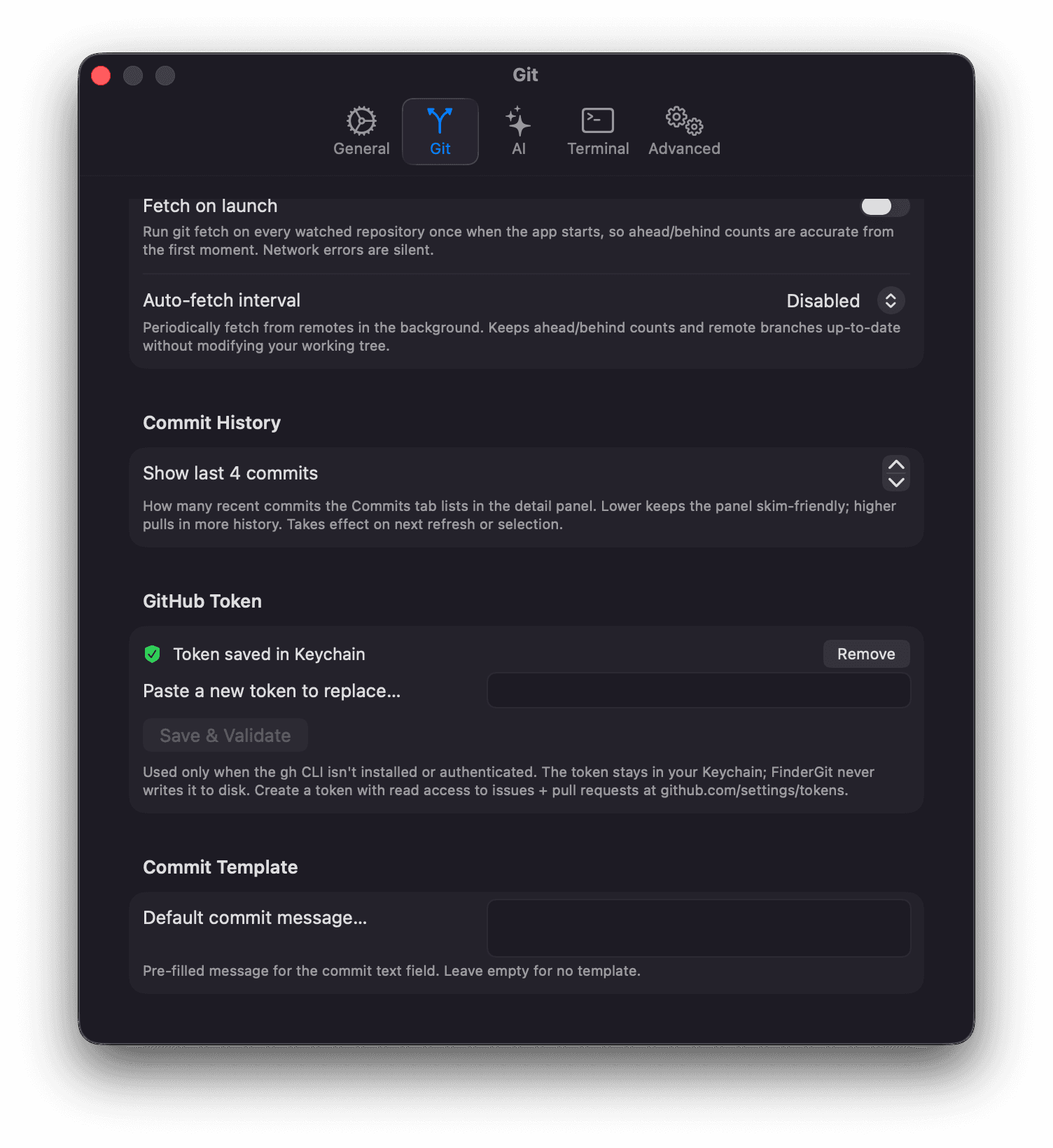
- Open Settings → Git → GitHub Token.
- Paste the token into the field and click Save & Validate.
FinderGit round-trips a single call to GitHub before saving. If the token is rejected (401/403), the error is surfaced and the token never lands in your Keychain. If the call fails for a network reason (offline, transient outage), you’ll see a “Couldn’t reach GitHub” message — try again, no need to assume the token is bad.
Once stored, the token lives in the Keychain under the entry for github.com. Use the Remove button to delete it.
What populates from GitHub
Overview tab
- Description, stars, forks
- Latest release tag (clickable → opens the release on github.com)
- Homepage URL (clickable)
- Repository topics
- Top contributors (up to eight avatars, clickable → their GitHub profile)
Issues tab
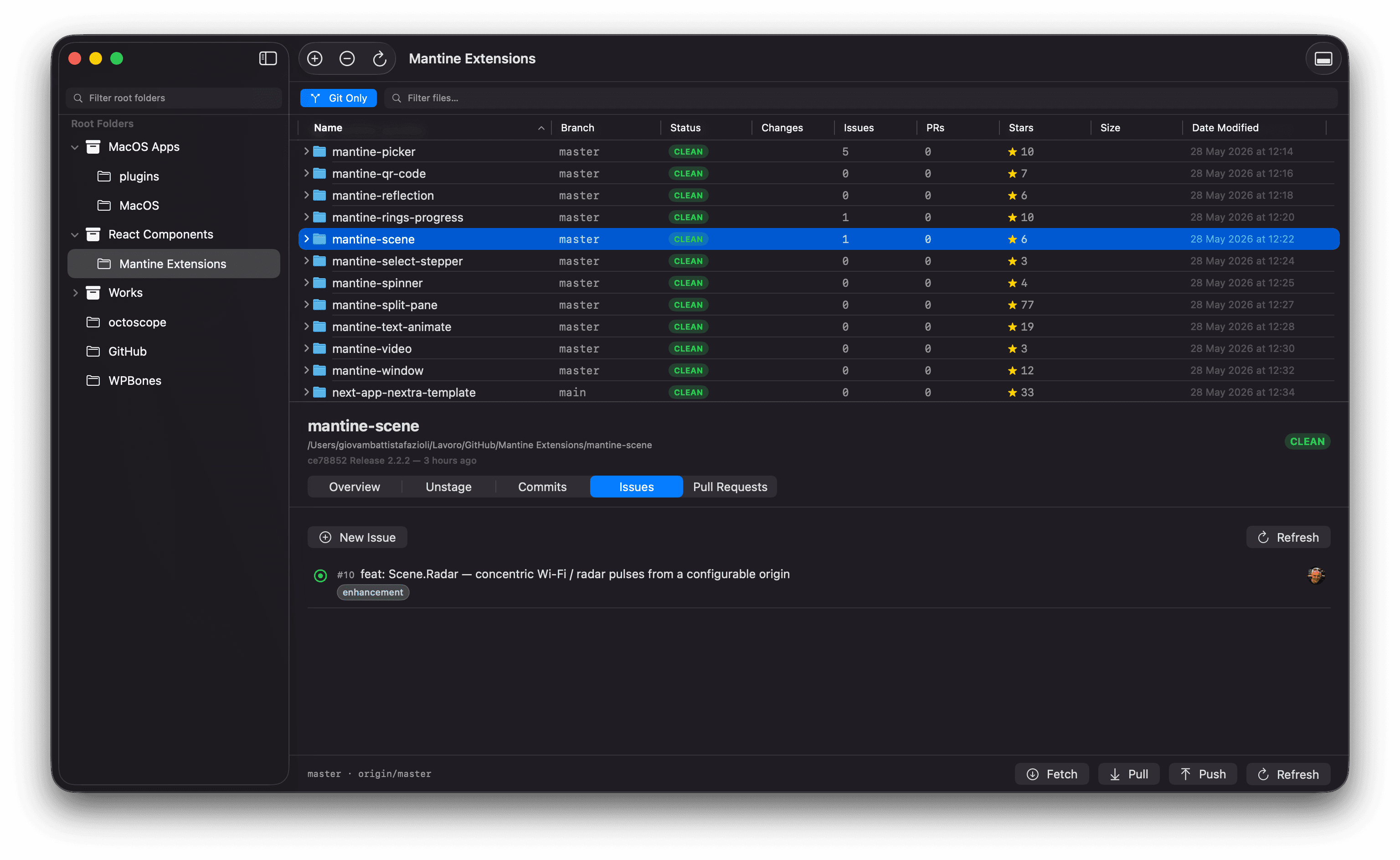
Open issues for the repo, with state icon, number, title, labels, and author avatar. Click any row to open the issue on github.com. The New Issue button opens the new-issue form.
Pull Requests tab
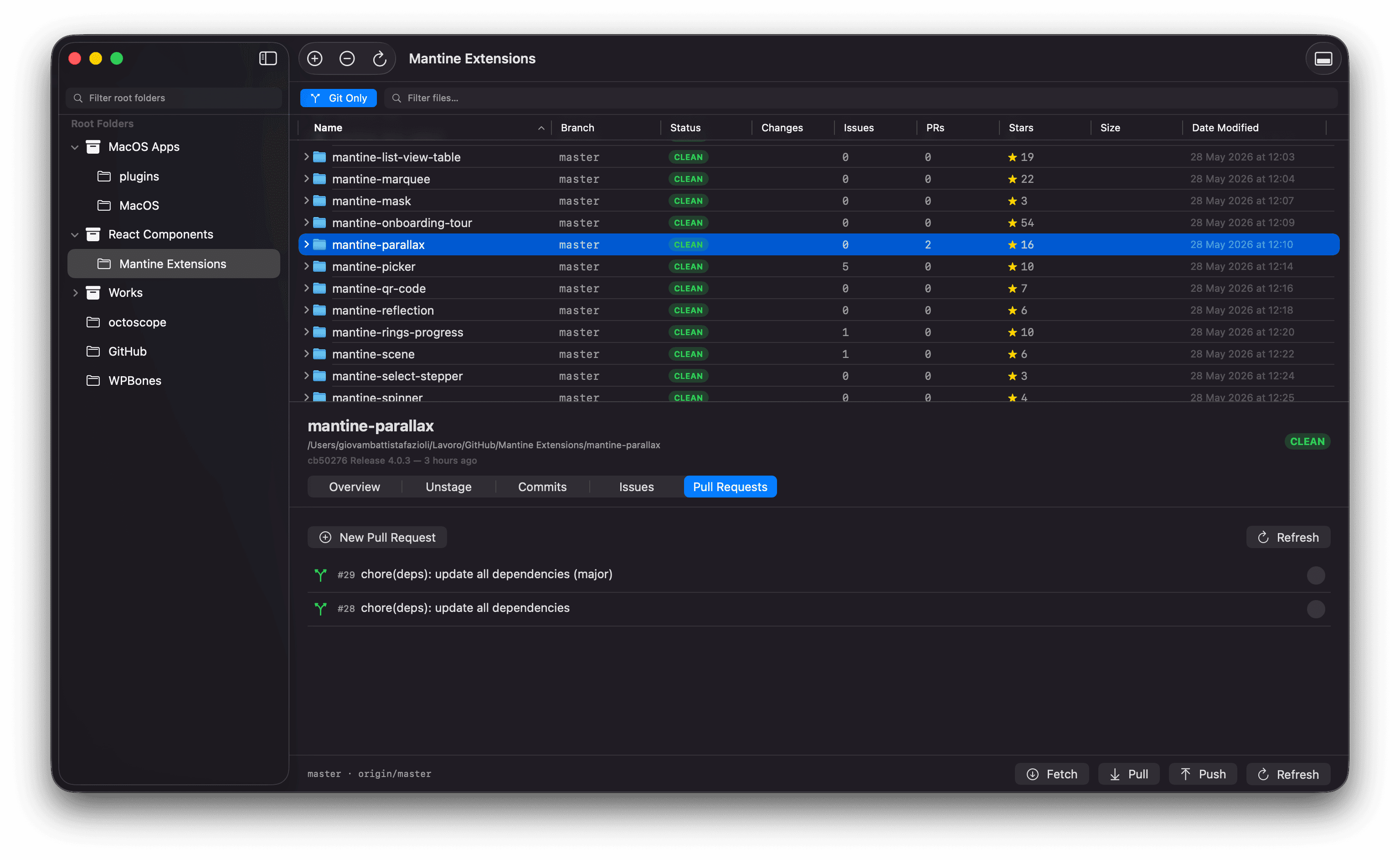
Same shape as Issues, with three state colours (green for open, purple for merged, red for closed-not-merged) plus a grey Draft pill for draft PRs. The New Pull Request button opens the compare page on github.com.
File-browser columns
In the table, three columns appear next to Changes:
- Issues — number of open issues
- PRs — number of open pull requests
- Stars — stargazer count, with a small ⭐ icon
Numbers use the compact format (1.2K instead of 1234). Click any column header to sort by it — popular repos to the top, or busiest repos by open issues.
For repos without a GitHub remote (local-only, or pointing at GitLab / Bitbucket), the cells stay empty. GitLab and Bitbucket integration is a planned follow-up.
Caching and freshness
To respect GitHub’s rate limits and keep the UI snappy:
- Issues and Pull Requests lists cache for 60 seconds — fast enough that the tab strip can be flipped without re-fetching, slow enough to suppress redundant calls in the same browsing session.
- File-browser counts cache for 5 minutes — these numbers change slowly and the file browser may show dozens of repos at once, so a 60-second TTL would churn the network on every scroll.
Each tab has a Refresh button that bypasses the cache when you want immediate fresh data.
Privacy and rate limits
- All requests go directly to
api.github.comfrom your Mac. FinderGit runs no proxy and stores no telemetry about the repos you open. - With
ghCLI auth or a PAT, you get GitHub’s authenticated rate limit (5000 requests/hour) — comfortably above what FinderGit consumes. - Unauthenticated traffic is not attempted; if neither
ghnor a PAT is set up, FinderGit shows an empty state instead of hitting the 60-request/hour anonymous limit.