Git Actions
FinderGit lets you perform common Git operations directly from the app, without opening a terminal.
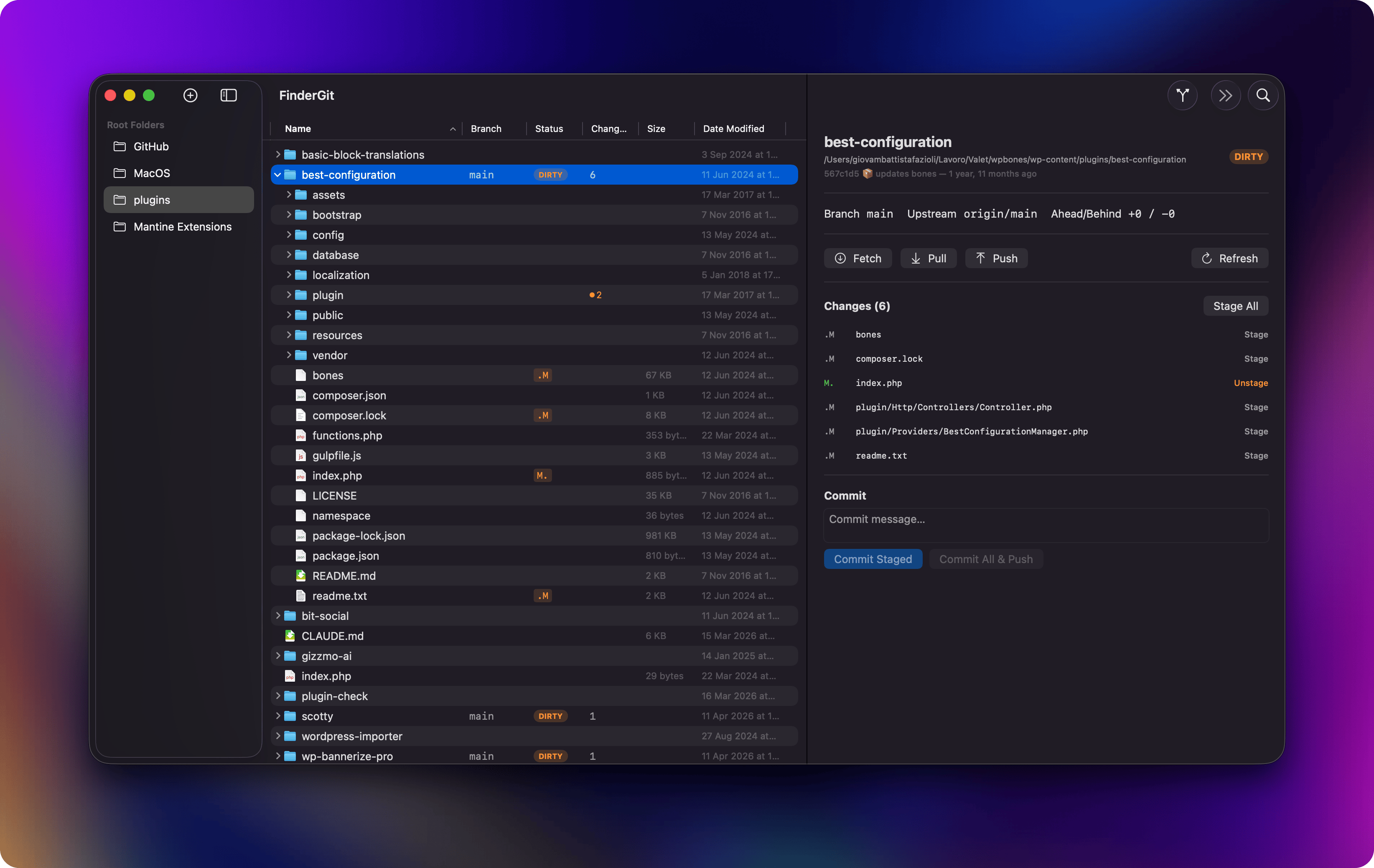
Available actions
From the Detail Panel
When you select a repository (or any item inside one), the detail panel shows:
- Fetch — fetches from all remotes (
git fetch --all) - Pull — pulls from the upstream (
git pull) - Push — pushes to the upstream. If no upstream is configured, automatically sets it with
--set-upstream origin <branch> - Refresh — re-reads the repository status
Staging and unstaging
In the changes list, each file has a Stage or Unstage button:
- Stage — runs
git add <file> - Unstage — runs
git restore --staged <file> - Stage All — stages everything (
git add -A)
The buttons appear intelligently: “Stage” only shows for files with unstaged changes, “Unstage” only for staged files.
Committing
Below the changes list, a commit section appears when there are changes:
- Type your commit message in the text field
- Click Commit Staged to commit only staged files
- Or click Commit All & Push to stage everything, commit, and push in one action
Context menu actions
Right-click on a repository directory for quick access to:
- Fetch, Pull, Push, Stage All
- Open in Terminal (uses your preferred terminal app from Settings)
Right-click on a file inside a repo for:
- Stage / Unstage (only when applicable)
From the menu bar
The Repository menu provides the same actions with keyboard shortcuts:
| Shortcut | Action |
|---|---|
⌘+⇧+F | Fetch |
⌘+⇧+L | Pull |
⌘+⇧+P | Push |
⌘+⇧+A | Stage All |
⌘+⇧+S | Stage Selected File |
⌃+⌘+T | Open in Terminal |
⌘+R | Refresh |
Menu items are enabled/disabled based on what’s selected and whether the file actually has changes.
Last updated on