File Browser
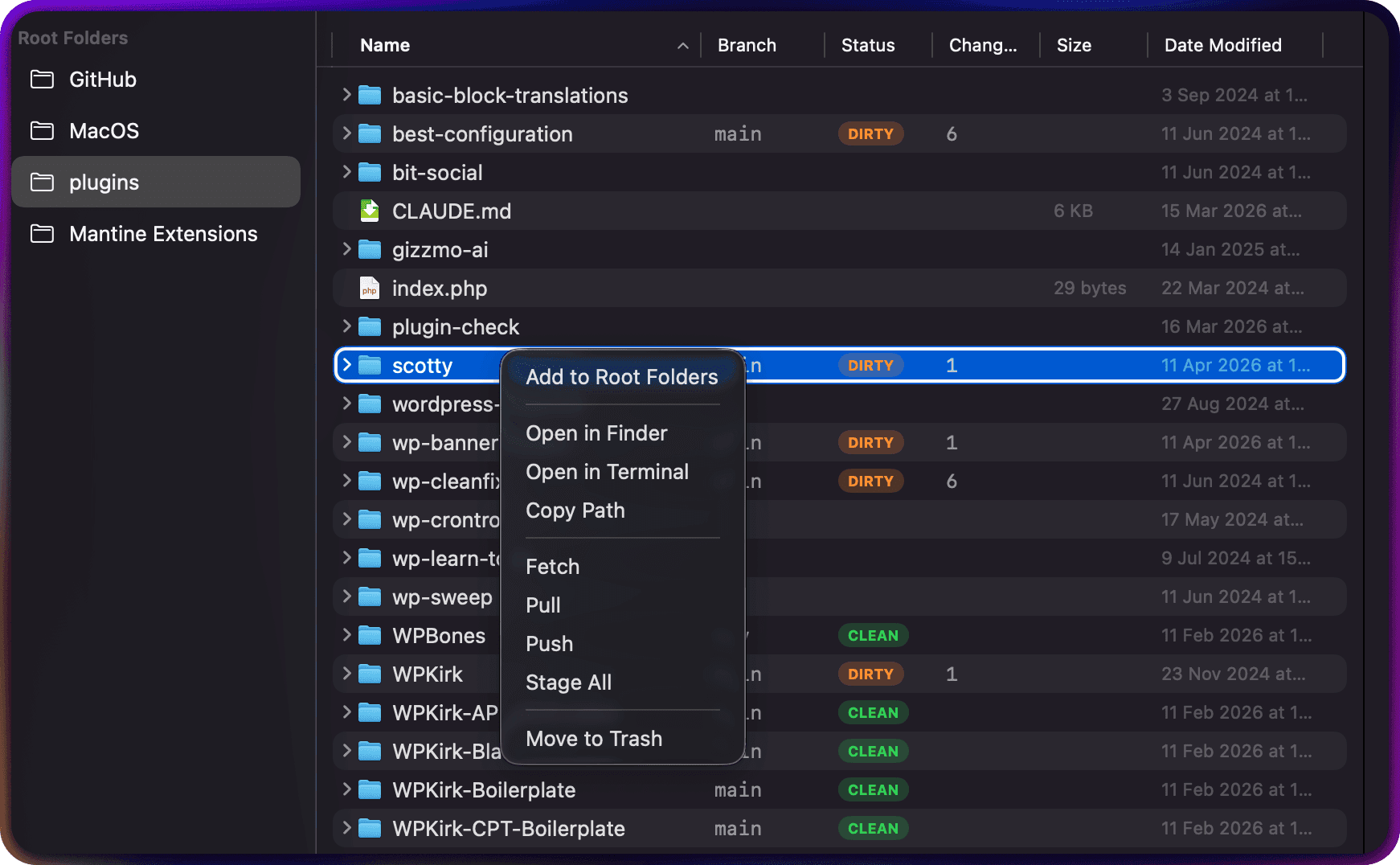
The file browser is the heart of FinderGit. It presents your files in an expandable outline table, similar to Finder’s list view, but enriched with Git information.
Tree navigation
Click the disclosure triangle (▸) next to any directory to expand it and see its contents. The tree loads children lazily — only when you expand a folder.
Hidden files
By default, FinderGit hides dotfiles (files starting with .). You can show them in Settings → General → Show hidden files.
Excluded directories
FinderGit automatically skips heavy directories during scanning:
node_modules,.build,Pods,Carthage,DerivedData.Trash,Library,Applications,.cache,.npmvendor,bower_components
You can customize this list in Settings → General → Excluded Folders.
Git indicators
Repository badges
Repositories (directories containing .git/) show inline status:
- CLEAN (green) — working tree matches HEAD, nothing to push
- DIRTY (orange) — uncommitted changes exist
- UNPUSHED (blue) — clean tree but local commits not yet pushed
Sub-directory indicators
Directories inside a repository show an orange dot with a number if they contain modified files. This lets you trace dirty files without expanding every folder.
File status codes
Modified files inside a repository show their git status porcelain code (e.g., M. for modified-unstaged, A. for added-staged, ?? for untracked).
Sorting
Click any column header to sort the tree by that column. Supported columns:
- Name, Branch, Status, Changes, Size, Date Modified
Click the same header again to reverse the sort order.
Search and filter
Use the search field in the toolbar to filter files by name. The filter applies across the entire tree with a 300ms debounce.
Toggle the Git Only button (branch icon in toolbar) to hide all non-repository files and directories.
Context menu
Right-click any item in the tree to get a context-sensitive menu. The options adapt to what you right-clicked:
- Directory inside a repo — Stage All, Unstage All, plus standard file actions
- Modified file — Stage / Unstage (depending on current state), Reveal in Finder, Copy Path, Quick Look
- Clean file — Open, Quick Look, Reveal in Finder, Copy Path
- Non-git directory — Add as Root Folder, Open in Finder, Open in Terminal
Quick Look
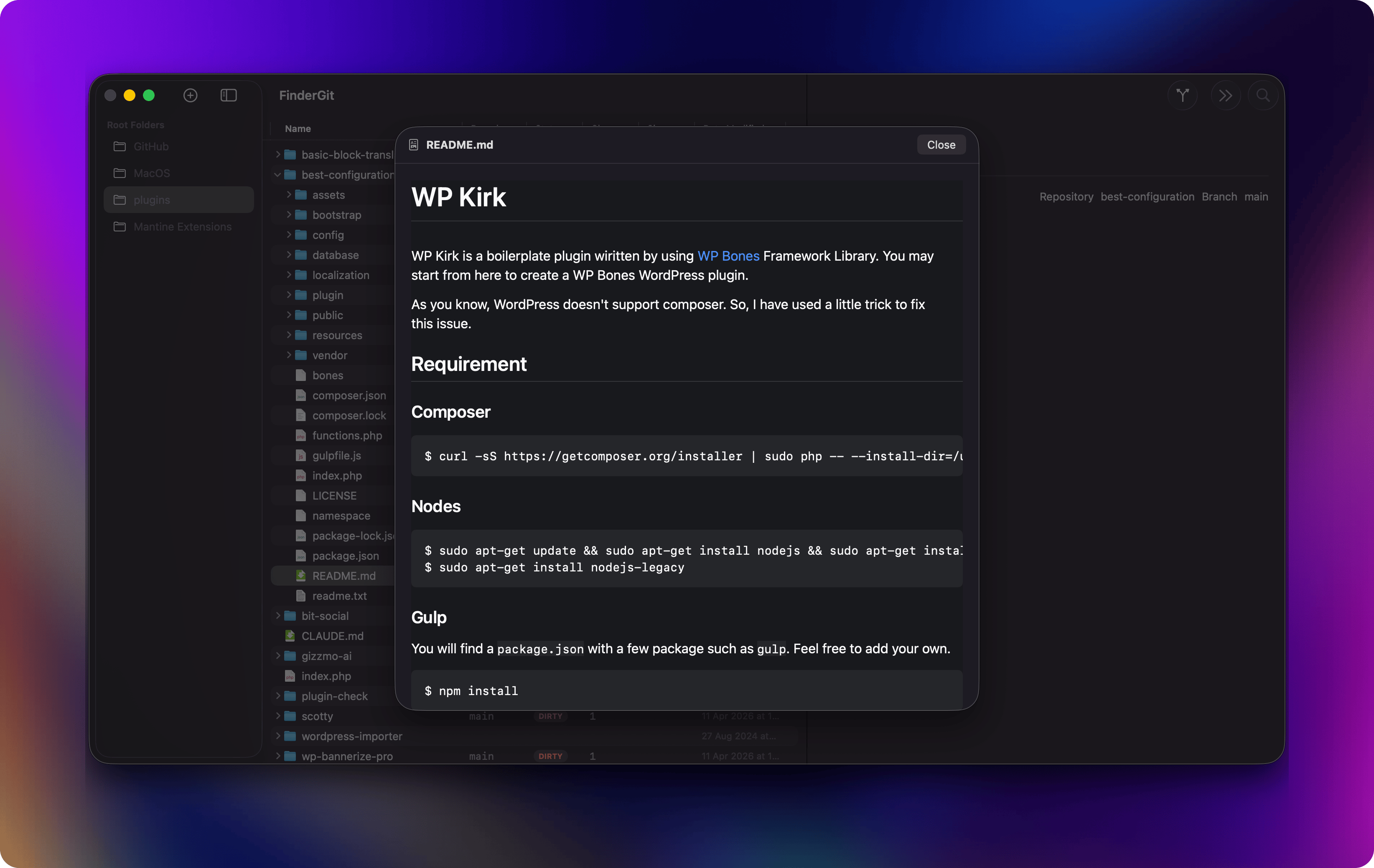
Press Space on any selected file to preview it without leaving the app.
.mdand.markdownfiles open in a native renderer (GitHub-style theme via MarkdownUI). Close with Space or Escape- All other file types fall back to the system Quick Look (
qlmanage) — same behaviour as in Finder